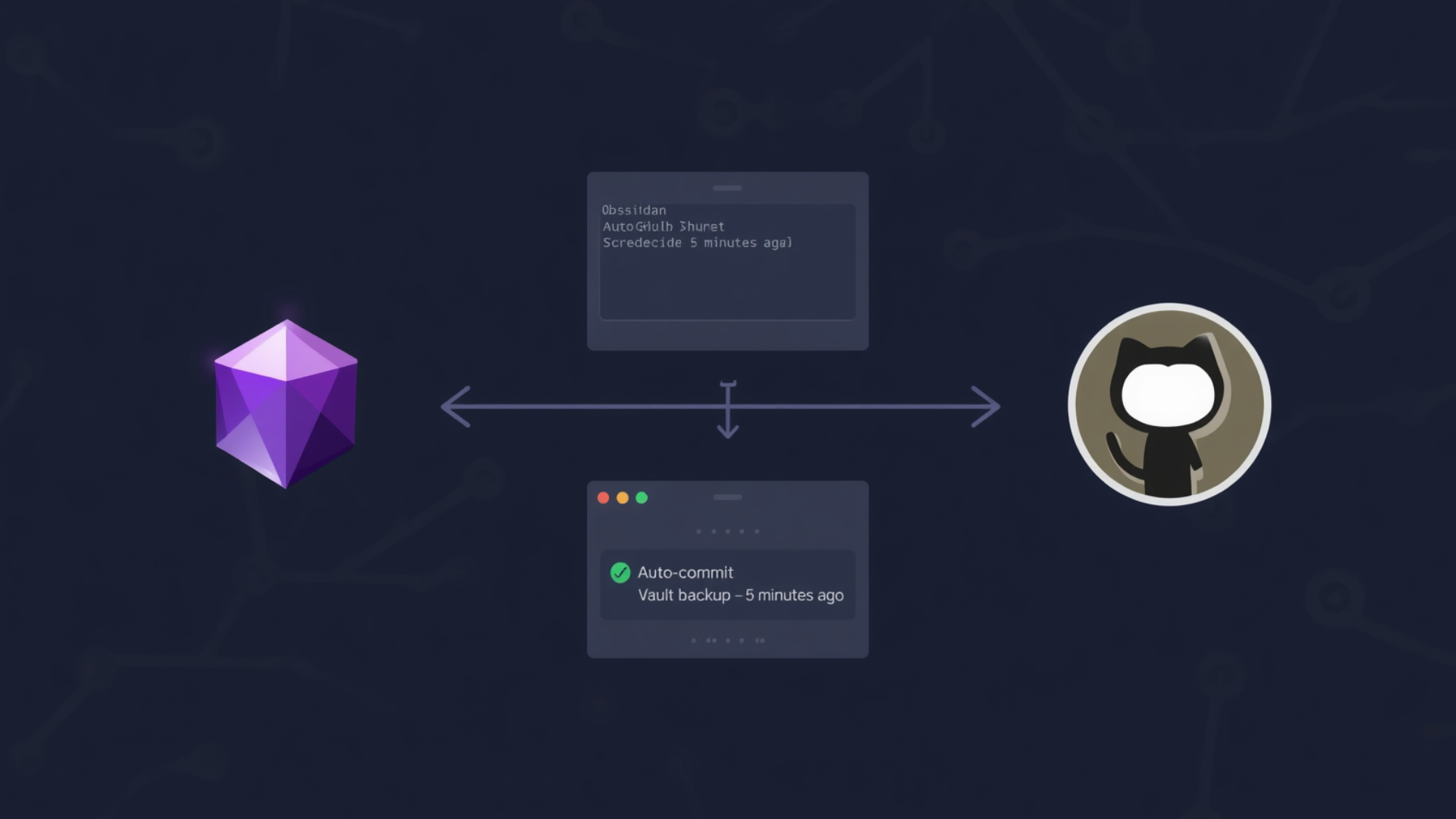
A few people have asked me recently how I back up my Obsidian vault, especially compared to something like Notion where sync and backup are just built in.
Short answer: Git and GitHub. Free, private, and I own the pipeline.
I’ve been running this setup for a while now and it works cleanly. Every few minutes, my vault auto-commits and pushes to a private GitHub repo. If I pick up a new machine, it’s cloned and running in under two minutes with all my plugins, themes, and settings intact.
Here’s exactly how to set it up.
What You Need
- Obsidian installed on your devices
- Git installed on each device
- A GitHub account
- The Obsidian Git community plugin
Step 1: Create the GitHub Repo
Create a new private repository on GitHub. Name it whatever you want (e.g. Study-Notes). Initialize it with a README so the main branch exists from the start.
Step 2: Generate a Personal Access Token
The Obsidian Git plugin authenticates via HTTPS with a token embedded in the remote URL. You’ll use this same token across all devices.
Go to: GitHub → Settings → Developer settings → Personal access tokens → Tokens (classic)
Generate a new classic token:
- Scopes: check repo
- Expiration: No expiration
Copy it immediately, GitHub only shows it once. Store it somewhere safe (a password manager, not a plaintext file).
Step 3: Set Up Git in Your Vault
There are two ways to do this. Pick one.
Option A - Terminal (recommended)
Gives you full control over where .git lands. Navigate to your vault folder and initialize git there.
cd /path/to/your/vault
git init
git remote add origin https://<TOKEN>@github.com/<USERNAME>/<REPO>.git
git fetch origin main
git checkout main
If you’re starting fresh with an empty vault, skip the fetch/checkout and push directly:
git add .
git commit -m "initial commit"
git push -u origin main
Option B - Obsidian Git plugin (no terminal)
Install the Obsidian Git plugin first (Step 4), then open the command palette (Ctrl/Cmd + P) and run Clone an existing remote repo. Paste your URL in this format:
https://<TOKEN>@github.com/<USERNAME>/<REPO>.git
It will ask for a subfolder name to clone into.
The trap: the plugin clones into a subfolder inside your current vault, not into the vault root. That means .git ends up nested one level too deep:
MyVault/              ← vault root (.obsidian/ lives here)
└── Study-Notes/      ← .git lives here — plugin won't work correctly
To avoid this, open Obsidian pointing at an empty folder first, then clone. The repo contents become the vault root and .git lands in the right place.
If you do end up with the nested structure and want to keep it that way, you must tell the plugin where to find git. Go to Settings → Obsidian Git → Advanced → Custom base path and set it to the subfolder name (e.g. Study-Notes). Without this, the plugin looks in the vault root, finds no .git, and silently does nothing.
Either way, the critical rule is the same: .git must be at the same level as .obsidian/, or the custom base path must point to where .git actually lives.
Step 4: Install and Configure Obsidian Git
In Obsidian: Settings → Community plugins → Browse → search for Obsidian Git → Install → Enable.
Then go to the plugin settings and configure:
| Setting | Value |
|---|---|
| Auto commit-and-sync interval | 5 |
| Pull on startup | On |
| Push on commit-and-sync | On |
| Pull on commit-and-sync | On |
| Merge strategy | Merge |
| Custom base path | (leave empty) |
The “commit-and-sync” action stages everything, commits, pulls remote changes, then pushes, all in one shot. With the 5-minute interval, your notes are never more than 5 minutes out of sync across devices.
Step 5: Adding a New Device
Option A - Terminal
git clone https://<TOKEN>@github.com/<USERNAME>/<REPO>.git /path/to/vault
Open Obsidian, point it at that folder as your vault.
Option B - Obsidian Git plugin
Open Obsidian pointing at an empty folder as your vault. Install the Obsidian Git plugin, then Ctrl/Cmd + P → Clone an existing remote repo → paste the token URL → give it a folder name. Once cloned, that folder becomes your vault — reopen Obsidian pointing at it directly.
Either way, since .obsidian/ is tracked in the repo, all your plugins, themes, hotkeys, and settings come down with the clone. The only manual step on a new device is enabling community plugins once — after that, Obsidian Git is already configured and running.
Token Security
A few things worth knowing:
- The token is stored in
.git/configin plaintext. Don’t push.git/configanywhere. - If a token is ever exposed (in a chat log, a screenshot, anywhere), delete it immediately on GitHub and generate a new one. Rotation takes under a minute.
- Update the remote URL on each device after rotating:
git remote set-url origin https://<NEWTOKEN>@github.com/<USERNAME>/<REPO>.git
Manual Backup
If you ever need to push immediately without waiting for the auto-interval, open the Obsidian command palette (Ctrl/Cmd + P) and run:
Obsidian Git: Create backup
That’s a manual commit-and-sync. Useful before shutting down a machine or after a big writing session.
That’s the full setup. One repo, any number of devices, automatic sync, zero subscription.